---
title: Getting started on desktop
description: Steps to create an account on Desktop
---
[Skip to content](https://help.rensystems.com/getting-started-on-desktop#main-content)
[Contact support](https://help.rensystems.com/kb-tickets/new?hsLang=en)
[%20(2).png?width=120&height=38&name=Ren%20Logo%20Light%20(1)%20(2).png)](https://help.rensystems.com?hsLang=en)
Open main navigation
Close main navigation
- [Contact support](https://help.rensystems.com/kb-tickets/new)
How can we help you?
- There are no suggestions because the search field is empty.
1. [Ren Help Center](https://help.rensystems.com/?hsLang=en)
2. [Getting started](https://help.rensystems.com/getting-started?hsLang=en)
# Getting started on desktop
##### Video Tutorial:
##### Step 1: Create an account
If you're an individual using Ren independently, [sign up here](https://rensystems.com/free-trial). If you're part of an organization, navigate to your organization's branded signup page. If you're unsure of it, ask your IT Admin or [contact support](https://help.rensystems.com/kb-tickets/new?hsLang=en).
##### Step 2: Connect your work contacts and calendar
For best results, sign up with your work email address and sync contacts. If you need approval from an IT Admin, [contact support](https://help.rensystems.com/kb-tickets/new?hsLang=en).
##### Step 3: Upload a Contact or Company List
If you have a list, spreadsheet, or database of clients, prospects, and other key contacts and companies, we recommend adding them [here](https://app.rensystems.com/accounts/upload).
Upload your list and click **Upload File**.
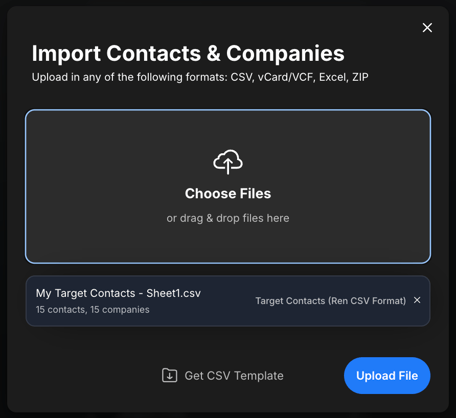
If you don’t have a custom contact list but would like to create one, feel free to [download our template](https://app.rensystems.com/resources/ren-contacts-template.csv), fill it out, and import it following the steps above.
##### Step 4: Upload your LinkedIn Connections
1. Visit the [Download my data](https://www.linkedin.com/mypreferences/d/download-my-data) page on LinkedIn.
2. Select **Download larger data archive, including connections…**, then click **Request Archive**. The button should change to *Request Pending*.
3. Leave the page open for about 15 minutes, then refresh the page and click **Download archive** to download your connections.
4. Go to your [Ren contact settings](https://app.rensystems.com/settings#linkedin), upload the file you downloaded, and press Upload File.
- [Getting started](https://help.rensystems.com/getting-started?hsLang=en)
- [Adding contacts](https://help.rensystems.com/adding-contacts?hsLang=en)
- [Feed optimization](https://help.rensystems.com/feed-optimization?hsLang=en)
- [Sharing, research, & outreach](https://help.rensystems.com/sharing-research-outreach?hsLang=en)
- [Enterprise configuration](https://help.rensystems.com/enterprise-configuration?hsLang=en)
- [Frequently asked questions](https://help.rensystems.com/frequently-asked-questions?hsLang=en)
[](http://www.rensystems.com)
Copyright © 2025, Ren Systems